






Guide
How to remove background noise from audio — without making it sound robotic
Why AI noise removal sometimes sounds robotic
It happens when the noise remover is pushed past the point where it can tell voice from noise, so it starts removing parts of the voice too.
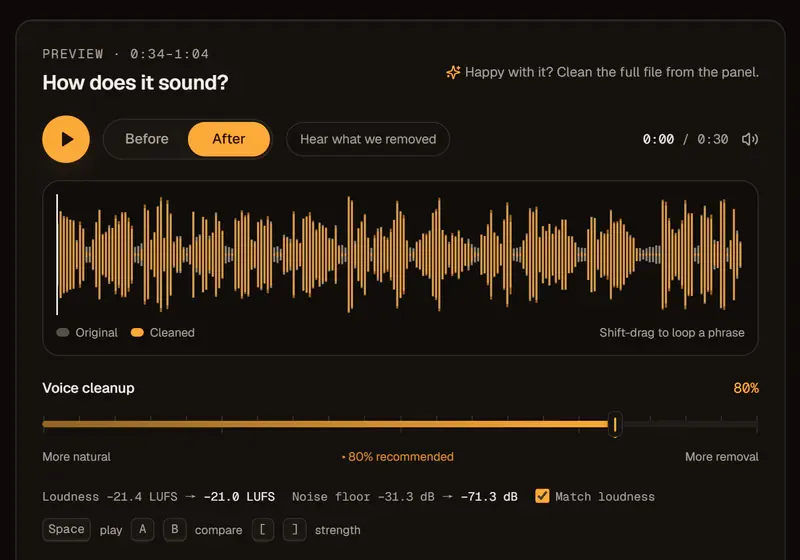
The fix is a strength control, not a better button. Around 70–85% keeps the natural breath of a voice while the noise drops away; on very noisy files, leave a little background rather than thin the voice.
Remove noise from audio: AI vs. Audacity’s Noise Reduction
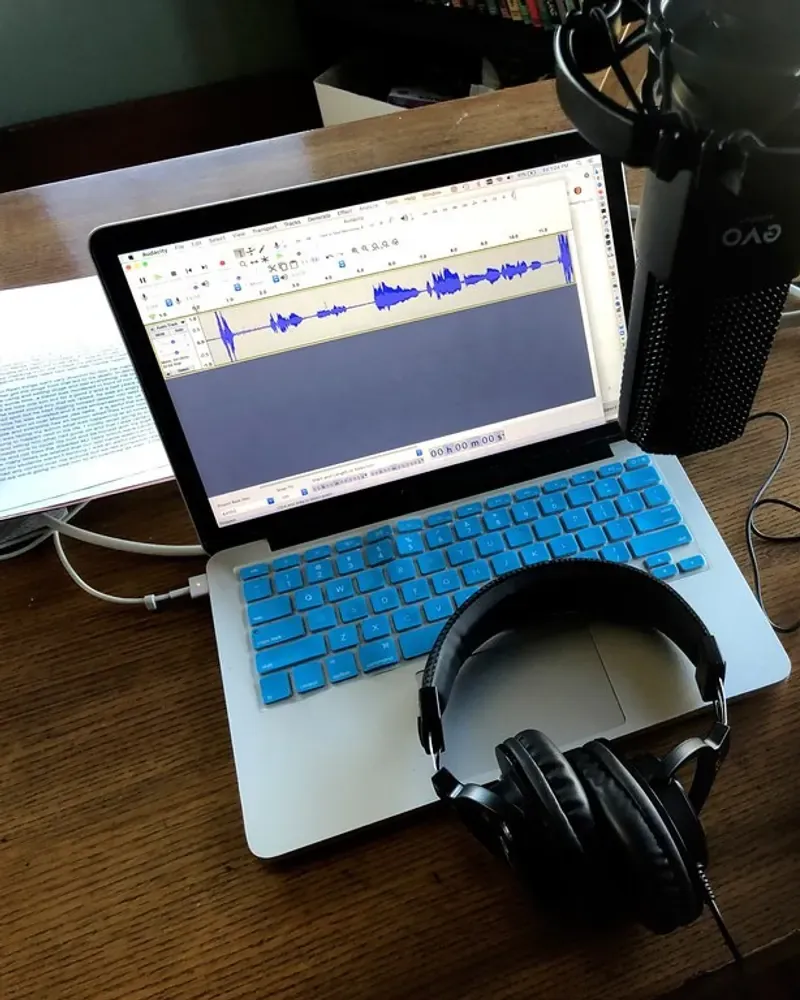
Audacity works well on steady hiss if you can find a clean “noise print”; AI works on changing noise without one.
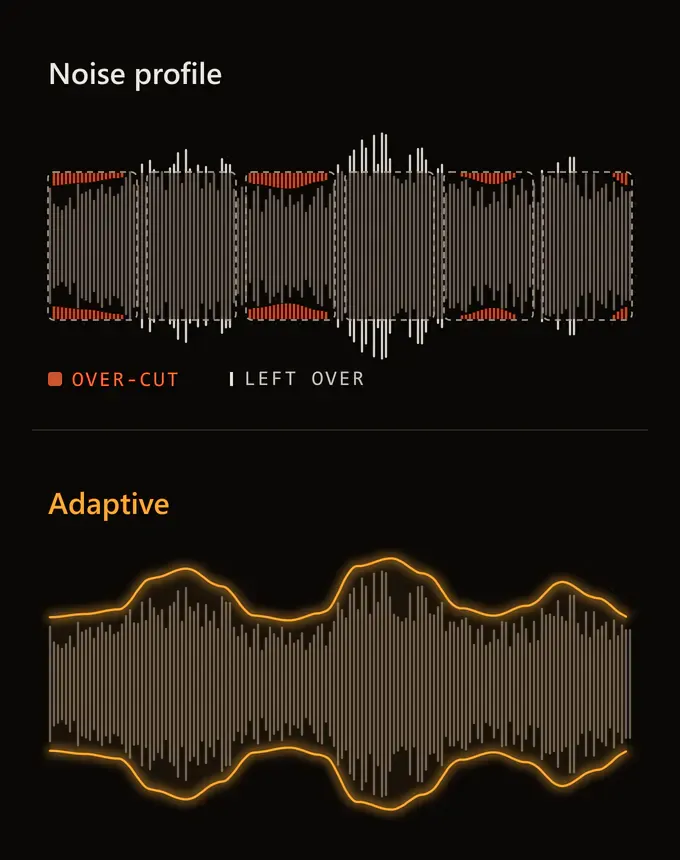
Audacity subtracts a profile of the noise you select. Traffic, chatter and keyboard clicks change every second, so one profile can’t follow them; an AI model listens for speech instead and keeps only that.
Remove background noise from audio recording first, then edit
Clean the raw recording before you cut it, add music or set loudness.
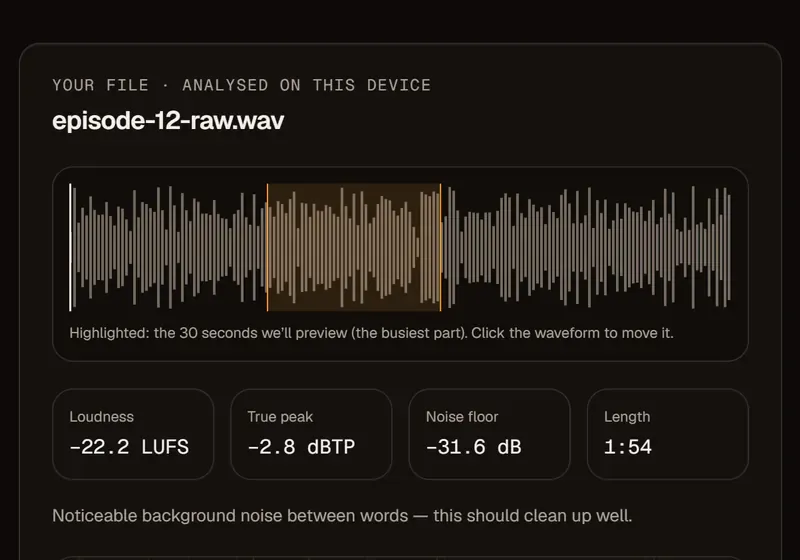
Turning a track up turns its hum and hiss up too. So remove background noise from audio while it is still raw, export WAV, then edit as usual. To finish, pick a loudness preset on export or use the free Loudness Normalizer, which runs in your browser and uploads nothing.
Record with less background noise next time
The best cleanup is less noise to begin with: get closer to the mic and switch off what hums.
Speak 10–15 cm (4–6 in) from the mic, turn off fans and air-con while you record, and add curtains, a rug or a sofa to calm the room. Then let AI handle what’s left.